How GradeChum Helps Teachers Spot Online Exam Cheating
In case you didn’t know: GradeChum shows how an online exam was taken, not just what was submitted


Online exams are convenient, but they are hard to supervise. In an older study of business students, 73.6 percent said cheating on an online exam was easy, as cited in a 2021 PLOS ONE paper. AI has added new ways to do it: researchers note that tools built specifically to help students cheat in online exams now exist.
For teachers, the hard part is knowing what to do with a score. A high score doesn’t show how an exam was taken, and suspicion based on scores alone can be wrong in either direction. At Brown University this year, a professor’s take-home midterm averaged 96, while the in-person final averaged 48 among the students who stayed in the course. He suspected that most of his class had used AI (Inside Higher Ed; CBC News). In the opposite case, a student was given a zero after a detection tool flagged his essay as AI-written. He was eventually cleared after his family showed that the same tool flagged famous published works too (Yahoo Tech).
What teachers need is evidence about how an exam was taken: specific enough to act on, and careful enough not to accuse.
How GradeChum Addresses This Issue
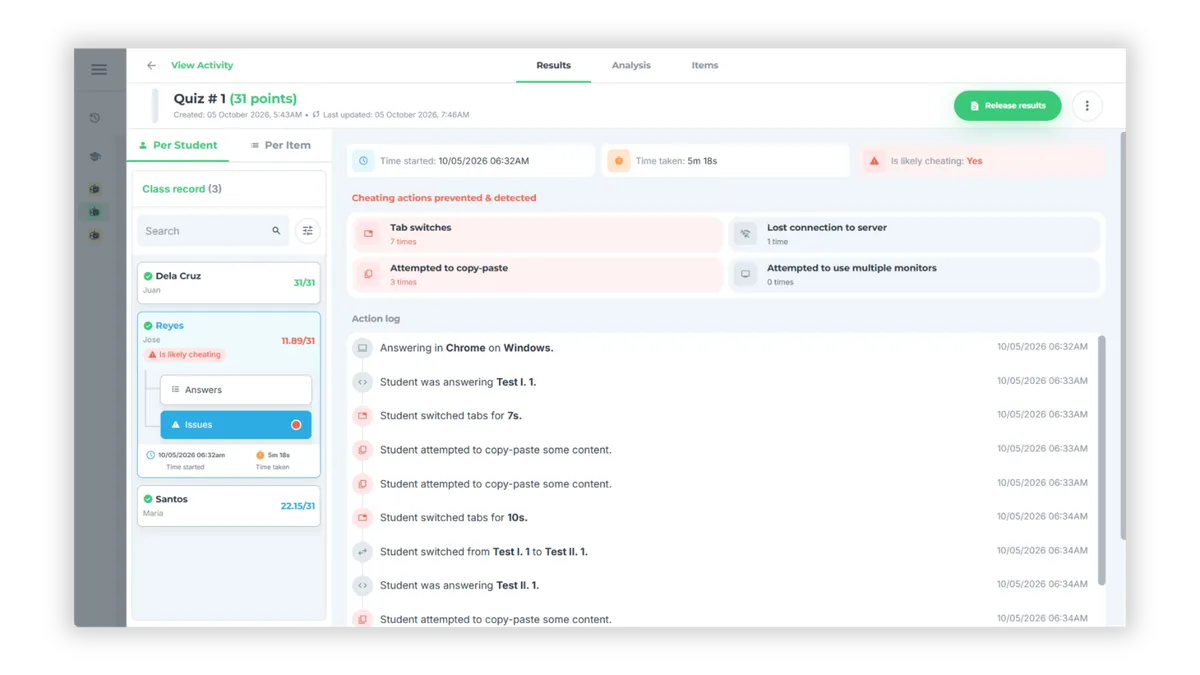
GradeChum records how each student takes an online exam and shows it to the teacher next to the score. Open an activity’s Results tab and choose Per Student. (The examples below use a sample class and sample student names.)
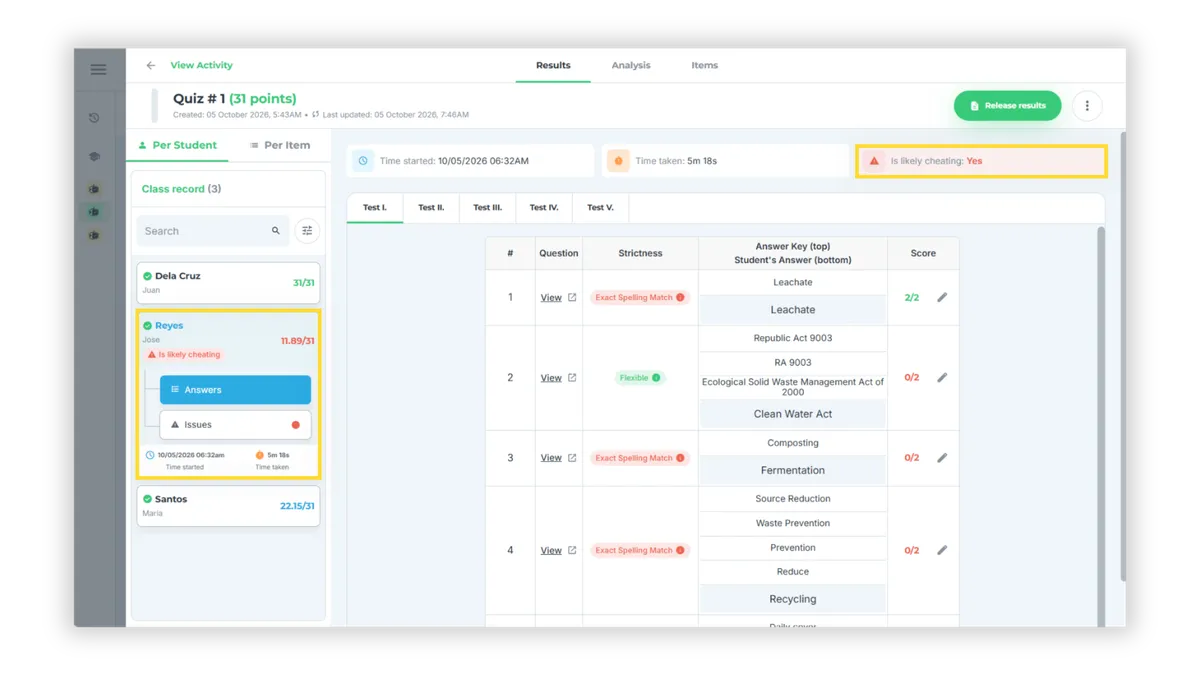
- A flag on the student’s card. In the class record, students whose exam shows suspicious behavior carry an “Is likely cheating” badge, so you know where to look first.
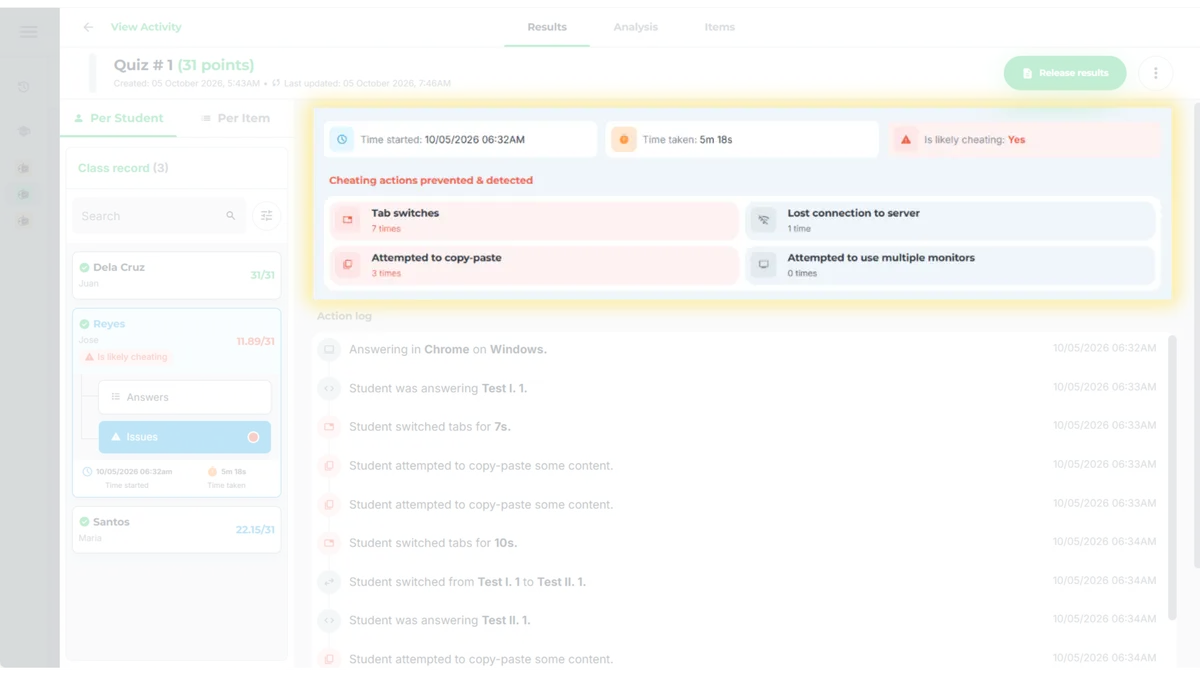
- A summary of what was detected. Open the student’s Issues tab to see the start time, the time taken, and a panel titled “Cheating actions prevented & detected.” It counts tab switches, attempted copy-paste, attempted use of multiple monitors, and lost connections. In the sample: 7 tab switches, 3 copy-paste attempts, 0 multiple-monitor attempts, and 1 lost connection over 5 minutes 18 seconds.
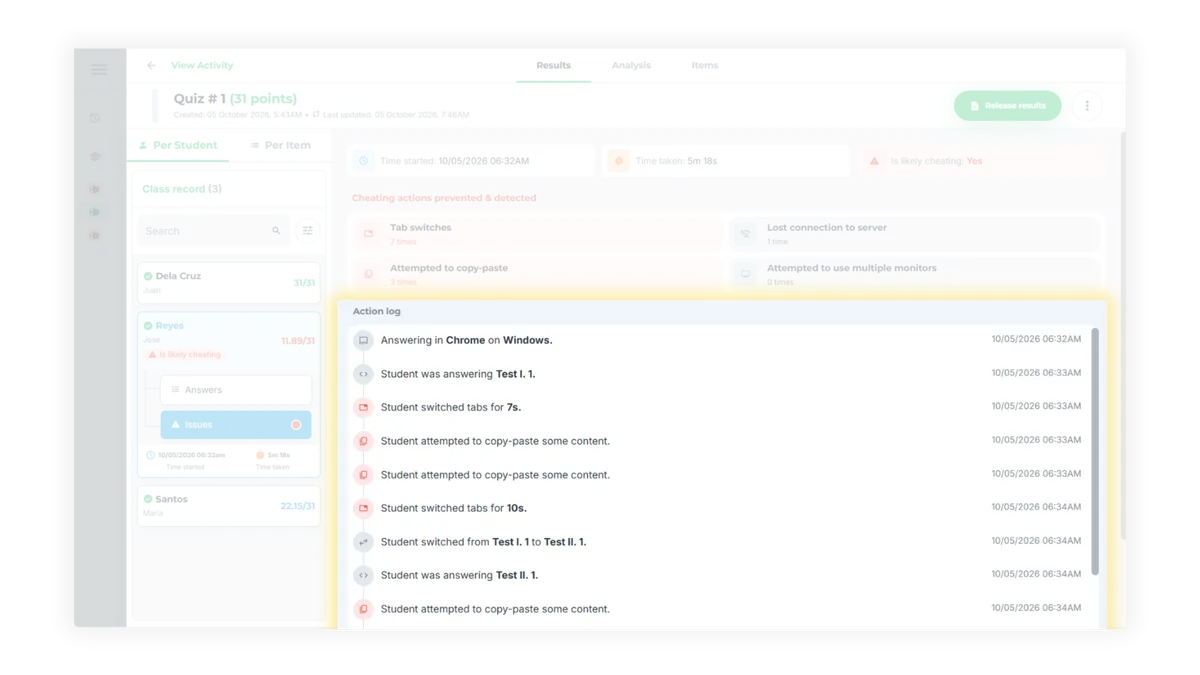
- A timestamped action log. The log shows the browser and operating system, which item the student was answering, each tab switch and how long it lasted, each copy-paste attempt, and each move between sections. In the sample, the first three minutes include tab switches of 7, 10, and 13 seconds, all three copy-paste attempts, and moves from Test I to Test II to Test III.
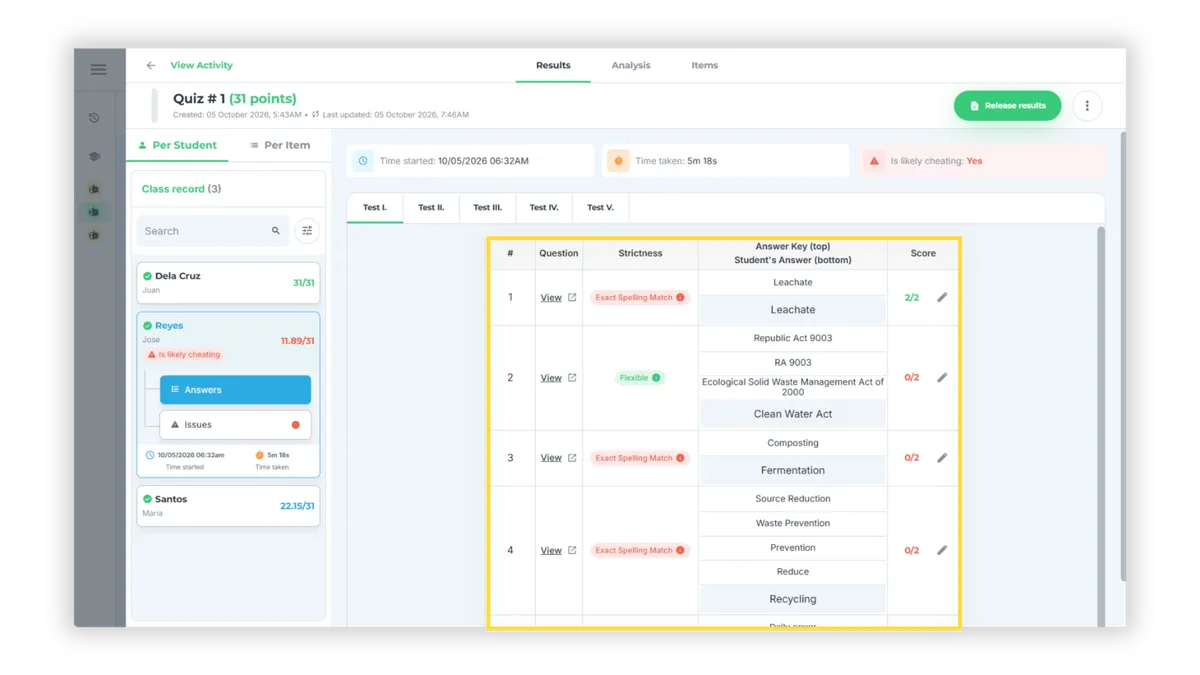
- The answers, next to the log. The Answers tab shows the answer key above the student’s answer, with the score beside it. The flag and the answers are separate evidence: in the sample, three of the first four answers were marked wrong, so the flag describes how the exam was taken, not how well it went.
How to Use Cheating Prevention and Detection Data Fairly
A flag is only as useful as what you do with it. Five habits keep the process fair for students and defensible for you.
- Tell students up front that tab switches, copy-paste attempts, and connection drops are recorded.
- Look for patterns, not single events. One 7-second tab switch means little. Repeated switches clustered with copy-paste attempts tell a different story.
- Check the context. Look at timing and duration, whether a lost connection could explain it, and how the log compares with the student’s answers.
- Talk before you decide. Ask the student to walk you through their answers, or follow up with a short in-class check. A clean log isn’t proof of honesty either, since tracking inside the exam window can’t see a phone beside the keyboard.
- Be consistent and keep records. Apply the same standard to every student, follow your school’s academic integrity policy, and keep the log with your notes.
Try It on Your Next Online Quiz
GradeChum gives you the story behind the score and leaves the decision to you. On your next online quiz, open the Results tab, choose Per Student, and check the Issues tab of any flagged student. Then tell us what would make it more useful in your classroom.